
1. How to Set Up a New Domain and Email in Flodesk
Flodesk allows you to add two domains and two email senders. The setup is simple, but you need to follow the order correctly.
Step 1: Add your sender email
Go to the email setup page in Flodesk and add your sender email. Flodesk will send you a verification email. Click the link in that email to confirm.
Step 2: Add your domain
After your sender email is verified, go to the domain setup area in Flodesk and add your domain name.
Step 3: Add DNS records
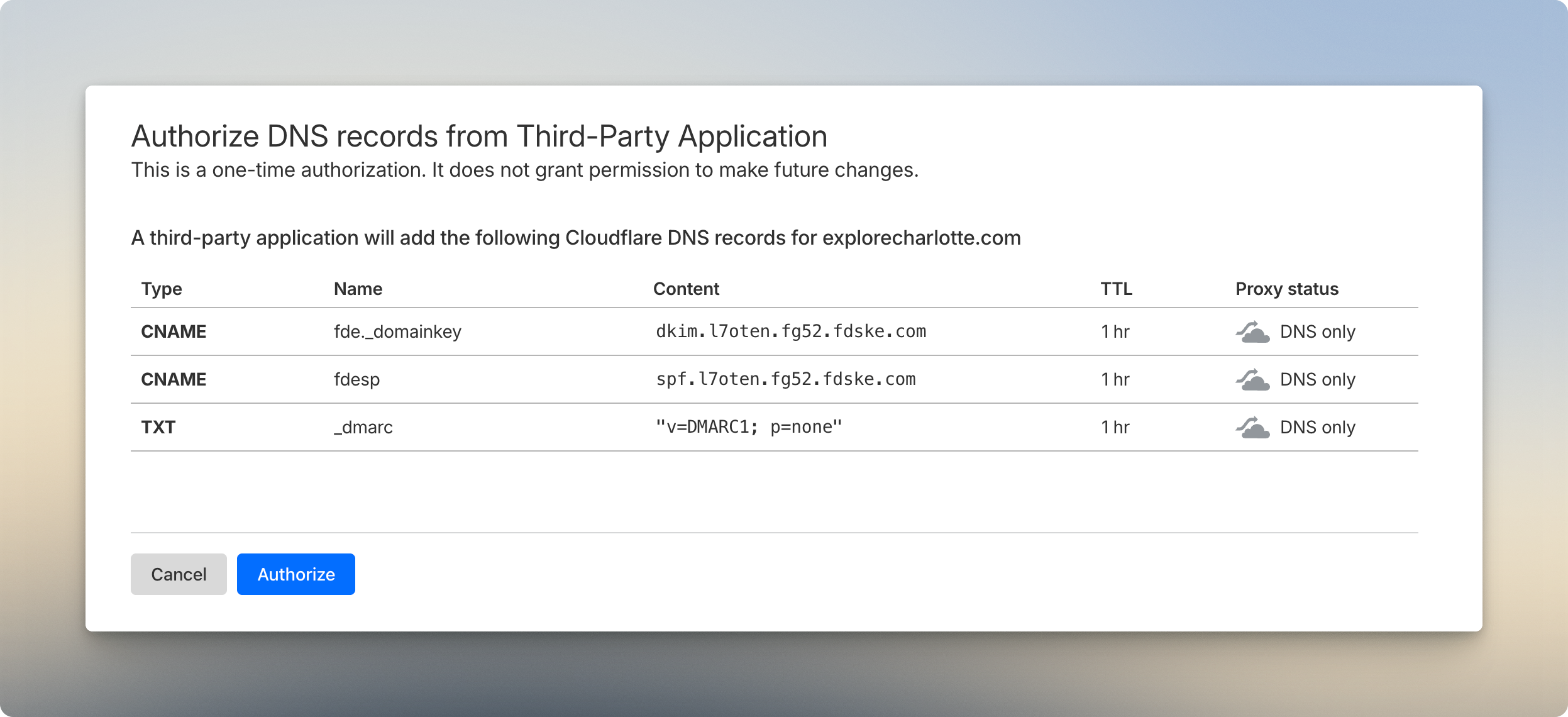
Flodesk will give you three DNS records
- DKIM
- SPF
- DMARC
Go to your DNS provider such as Cloudflare or your hosting cPanel. Add these three records exactly as shown.
Flodesk also gives an option to auto-authenticate your domain. When you choose this, Flodesk prepares all the needed DNS records for you. Just click yes to add them. You don’t need to sign up for any third-party pop-up service — select guest access, and it will detect your hosting provider. Then log in to your Cloudflare account and add the records. That’s all you have to do.
Step 4: Wait for authentication
Once the DNS records are added, Flodesk will mark your domain as authenticated. Your emails will now send properly from your custom domain.
That’s it. If you are setting up Flodesk for the first time, this is all you need.
2. How to Delete an Old Domain in Flodesk and Add a New One
This part can be confusing because Flodesk does not give a direct delete button unless some steps are done in the right order.
Here’s the easy method:
Step 1: Remove old DNS records
Go to Cloudflare or your hosting account and delete the old DKIM, SPF, and DMARC records that were added before.
Once deleted, Flodesk will change the domain status to Reauthenticate.
Step 2: Reverify your email
Go back to the email setup page. You will now see Reverify Email next to your old sender email. Even now, Flodesk will not show a delete option.
Step 3: Switch the default sender email
Click the three dots next to your other email and make it the default sender.
After this, the old email will now show the Delete option.
Step 4: Delete the old email
Click Delete. This clears out the old domain and email so you can add a new one.
Step 5: Add your new email
Add your new sender email and verify it through the email Flodesk sends you.
Step 6: Add your new domain
Go back to the domain setup area and add the new domain.
Flodesk will again show you DKIM, SPF, and DMARC records.
Step 7: Add DNS records again
Add these three records in Cloudflare or your hosting cPanel.
Once they are live, Flodesk will mark your domain as authenticated.
Your new domain is now fully set up.
If someone is using Flodesk for the first time, the process is the same. Add an email first, then add the domain, then add the DNS records.
If someone is replacing a domain, they must clear the old DNS records and switch the default sender email before the delete button appears.
